
Entering your license key
- Click Settings in the top bar, then License, then Manage License….
- Paste your license key.
- Click Activate.
If a license ever lapses, nothing you've recorded is deleted: Timecrumbs opens read-only, so you can still view, report on, and export everything.
A license for your firm
A firm license covers everyone at your firm who signs in to Timecrumbs with a Microsoft 365 or Google Workspace work account at your firm's domain. One person sets it up for everyone:
- In Timecrumbs, open Settings, then License, and click Manage License…. Paste the key and click Activate.
- In the same window, click Share With Everyone at the Firm. Only your firm's Timecrumbs admins can do this; see Your firm's admins.
- Everyone else's Timecrumbs picks up the license on its own while they're signed in with their work account at your firm's domain, in Microsoft or Google. Anyone who isn't signed in sees a Sign In button.
Once the key is shared, everyone's License window shows the firm's license: Settings, License, Manage License…, or Help, License….
If your firm doesn't share a project list, give the key to each person instead. They paste it once in Settings, License, Manage License… and click Activate.
To renew, do the same with the new key: Manage License…, paste it, click Activate, then Share With Everyone at the Firm again.
Moving your license to another computer
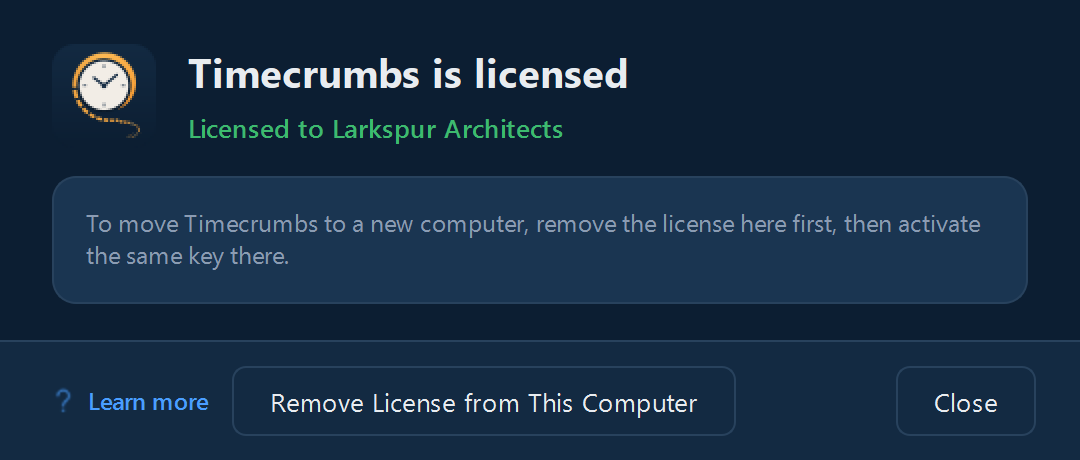
- On the old computer, open Settings, License, Manage License…, and click Remove License from This Computer.
- On the new computer, enter the same key.
Moving your data too? See Moving to a new computer.
Still stuck? Email support@timecrumbs.com and a person will reply, usually within one business day.